
Software Classification
Information Technology
- IT
- Information
- Technology
- Hardware
- Software
- Input
- CPU
- Output
- System
- Software
- Application
- Software
Hardware
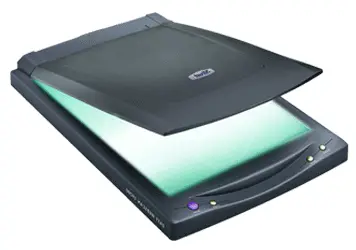
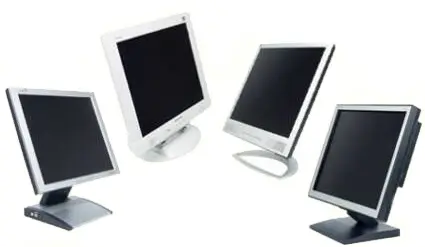
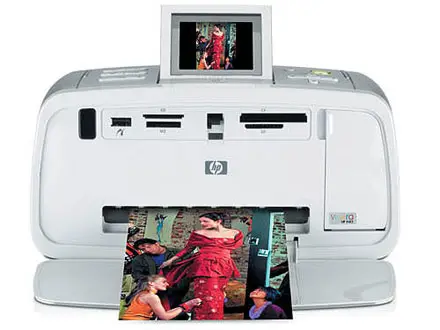
Deals with Peripherals. The physical components of a computer which occupy space, volume and are visible to us constitutes of hardware. The hardware is divided into three types Input unit System unit Output unit
Input unit / Devices
- Joystick
- Light Pen
- Scanner
- Trackball
- System Unit
- CPU ( central processing unit ) - It is the heart of the computer. It processes the data and instructions.
- Output unit / devices


Software
- It is a set of programs and routines that control the functioning of the hardware and direct its operation.
- The software can be categorized into three types System software Application software Utility software
System Software
- Functions of an System Software
- User interface: An interface that allows the user interact with the operating system.
- Memory management: OS manages memory management by allocating memory to the currently running programs
- Process management: OS schedules the processing power of the processor, memory and the hardware to the programs
- Device management: OS initiates the hardware devices and controls the sending or receiving of data
- File management: OS also controls the opening, closing and access permissions to a file.
System
- Software
- OS
- Environment
- Operating
- System
- Network
- OS
- OS environment (ose)
- 1. No own boot files. It requires Dos to boot (ex- Novell Netware, Windows 3.1)
- 2. It is an OS where only one user can access the resources of a computer at a time.
- 3. It is an OS which lets a user to perform only a single task at a time
Operating System (OS)
- 1.It contain own boot files. It is commonly used for (Win98, XP, ME, Win95) Individual PC’s. Low Security.
- 2. It is an OS where only one user can access the resources of a computer at a time.
- 3. It is an OS which lets a user to perform only a single task at a time
- Network operating system (nos)
- 1.It contains own boot files. It is mainly Used for Networking Purposes. High Security (ex – LINUX, WIN2000/03,UNIX)
- 2.It is an NOS where more than one user can access the computer resources at a time.
- 3.It is an NOS which lets the user to execute multiple programs simultaneously .
Application Software
- Application
- Software
- Language
- Package
- High Level
- Language
- Middle Level
- Language
- Low Level
- Language
- A. LANGUAGE– Used to Communicate between system and the user.
- (ex - c, c++, Visual Basic etc.,)
- TYPES : 1. High level Language, 2. Low Level Language
- 3. Middle Level Language
- B. PACKAGES – It is a Predefined software.
- (ex - Msoffice, FoxPro)
- C. UTILITIES – It can able to perform only one function. (ex - WinZip, Antivirus)
Anatomy of DOS
- Introduction
- MS-DOS (Microsoft Disk Operating System) is a command line operating system introduced by Microsoft.
- It provides a command line interface to accept the various commands that were typed.
- The first version was released in 1981 for IBM computers.
- It was renamed 86 DOS as it was designed to run on INTEL 8088 processor
- The last version of DOS was 7.0 released in December 1995
- Microsoft has stopped developing DOS since the year 2000.
Versions of MS-DOS
| version | Year of release | Features |
| 1.0 | Aug, 1981 | Distributed on a floppy disk, required 8 KB of RAM |
| 1.1 | May, 1982 | It supported 320 KB double-sided disks |
| 2.0 | Mar, 1983 | Support for hard disks, device drivers, directories and background printing |
| 3.0 | Aug, 1984 | Support for hard disks above 10 MB and 1.2 MB floppy disks |
| 3.1 | Feb, 1988 | Added networking and file sharing feature |
| 3.2 | May, 1991 | Added support for 3.5 inch floppy disks |
Features of MS-DOS
- Single-user Operating system
- Only one user can access the system at one time.
- Single tasking operating system
- Allows the user to perform only one task at a time
- 8-bit operating system
- Includes 8-bit program instructions and 8-bit data
- Command line interface
- Commands have to be entered from the keyboard
System Boot Sequence
- Boot sequence is the steps involved in starting of the computer when it is switched on. A classic boot sequence includes the following steps: After Switched on the System.
- 1. The POST ( Power On Self Test )
- POST is an inbuilt diagnostic program that checks the computer hardware. It checks CPU, RAM,
- Keyboard, expansion cards etc for detection and proper functioning. If any error is detected the boot process stops.
- 2. The internal power supply of the computer is switched on. Once the supply is accepted the processor instructs the BIOS ROM to start the BIOS boot program.
- 3. Loading the Operating system
- BIOS searches for the boot code from the boot device, which are listed in a specific order in the BIOS settings.
- When HDD is the boot device, BIOS loads the boot code in the Master boot record and transfers control to it.
- The master boot record code begins execution and examines the master partition table to search for any extended partition and to locates the root directory that contains the operating system files and load them
DOS System Files
- MS-DOS system files can be categorized into boot files and configuration files
- 1. Boot files:
- The boot files are required to start the Operating system. It includes IO. SYS MS-DOS. SYS COMMAND. COM DRVSPACE.BIN
2. Configuration files:
- These files are essential to perform the other functions of an operating system
- Config.sys - It is used to load the device drivers and set various other operating system environment variables.
- Autoexec.bat - It stands for an automatically executed batch file.
Memory Mapping
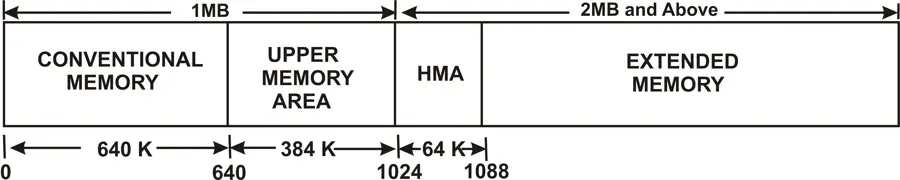
- The system memory of the computer can be divided into the following sections as shown in the figure below:
- The first 1 MB of RAM was divided into two sections, where the first 640 KB is reserved for operating system
- The remaining 384 KB (called upper memory area)
- is reserved for performing housekeeping works
- The memory above the first 1 MB was referred to as extended memory area.
Conventional Memory
- The first 640 KB of the first 1 MB of RAM is called Conventional Memory
- This area of memory is available for use by standard DOS programs, drivers, memory-resident programs and any program that has to run under standard DOS
- Conventional memory is the only kind of RAM that is accessible in DOS mode and DOS mode programs, unless any special technique to access the RAM is used
- Conventional memory occupies addresses 00000h to 9FFFFh of the RAM.
Upper Memory Area
- The Upper Memory area is present immediately above the conventional memory area, i.e. from 641 KB to 1024 KB or the upper 384 KB of the first 1 MB of RAM
- This memory area is reserved for use by system devices and for special uses such as ROM shadowing and drivers
- The Upper Memory area occupies addresses A0000h to FFFFFh of RAM
High Memory Area
- The High Memory Area is the first 64 KB of the second MB of system memory
- The memory above the first MB is called the extended memory but the first 64 KB of the second MB of RAM is called High memory Area
- The High Memory Area can be accessed by the processors in real mode only
- It is usually used by DOS to preserve the conventional memory
- This memory area occupies addresses 100000h to 10FFEFh
Extended Memory
- The area of memory above the High Memory Area is called the Extended Memory
- This memory is used by Windows operating system for programs and data that run in protected mode
- Extended memory is found from address 10FFF0h to the last address of system memory
- This memory is accessed through an extended memory manager called HIMEM.SYS